How to resolve audio issues
Are you experiencing issues with your audio connectivity at TutorBees.net classroom? Don't worry, we're here to help!
Google Chrome
Desktop/Laptop
If you are unable to join audio while using the Google Chrome browser on a laptop or desktop computer, please follow these steps to allow permissions to your microphone.
Step 1
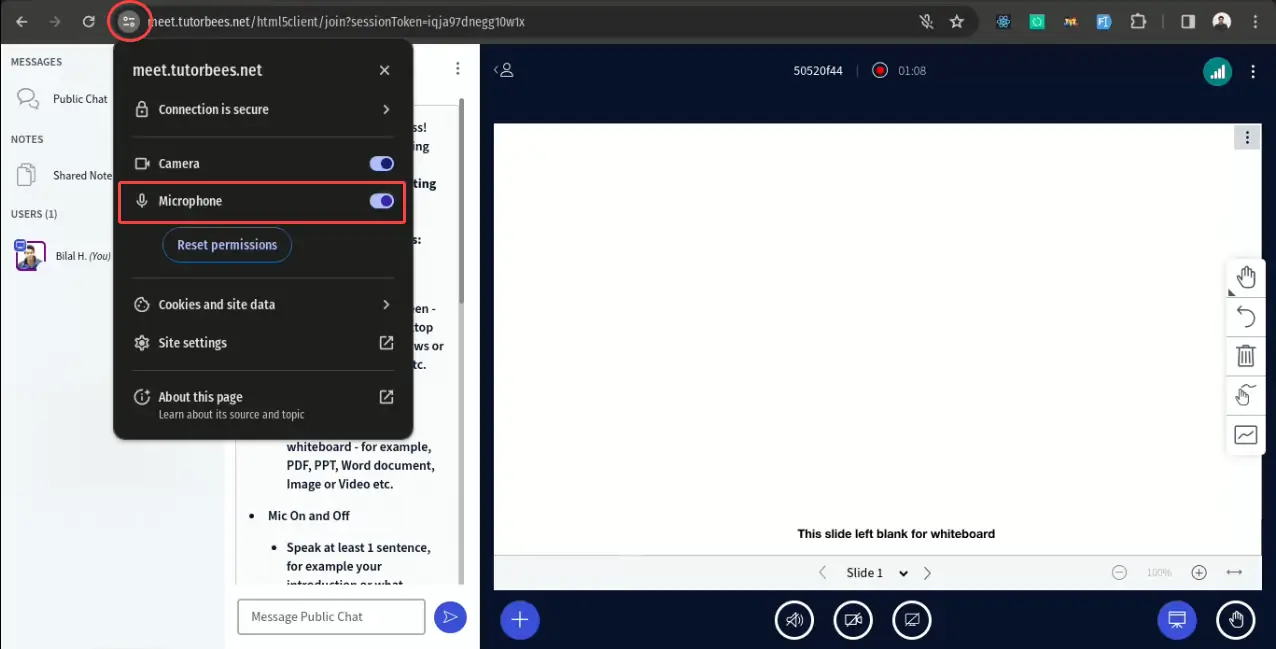
Click on the Settings icon on the left hand side of the URL, and click on the Toggle button in front of Microphone option.
Step 2
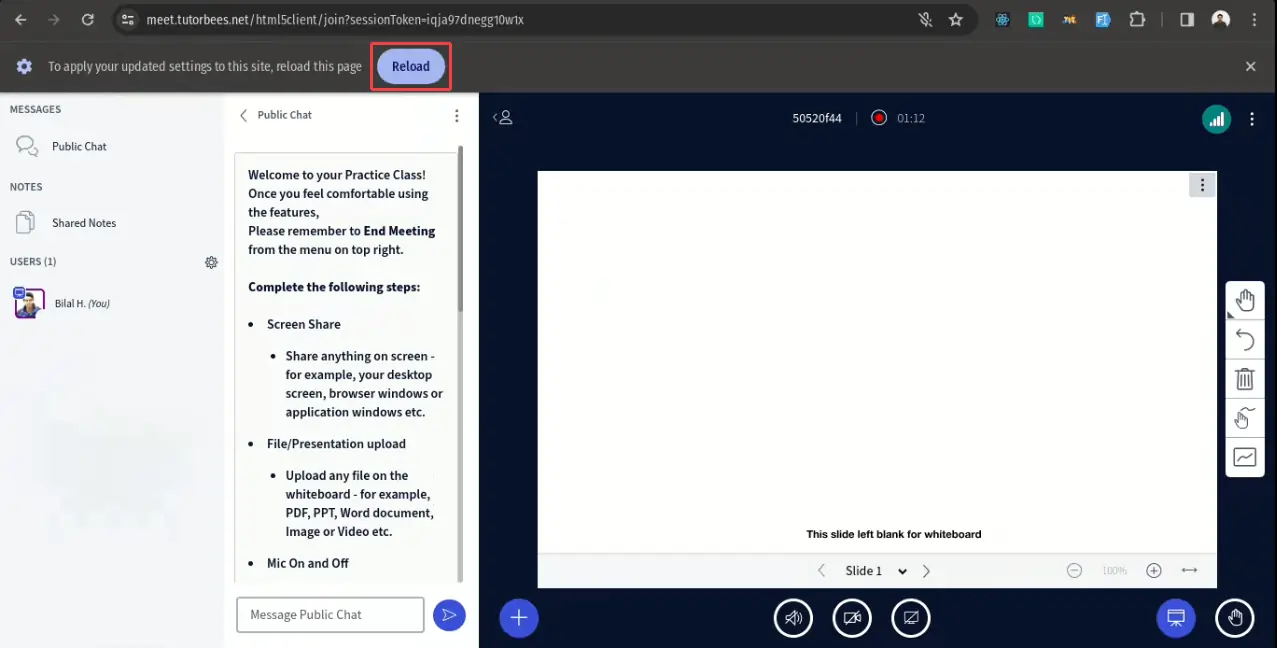
Close the menu and click on the Reload button.
Step 3
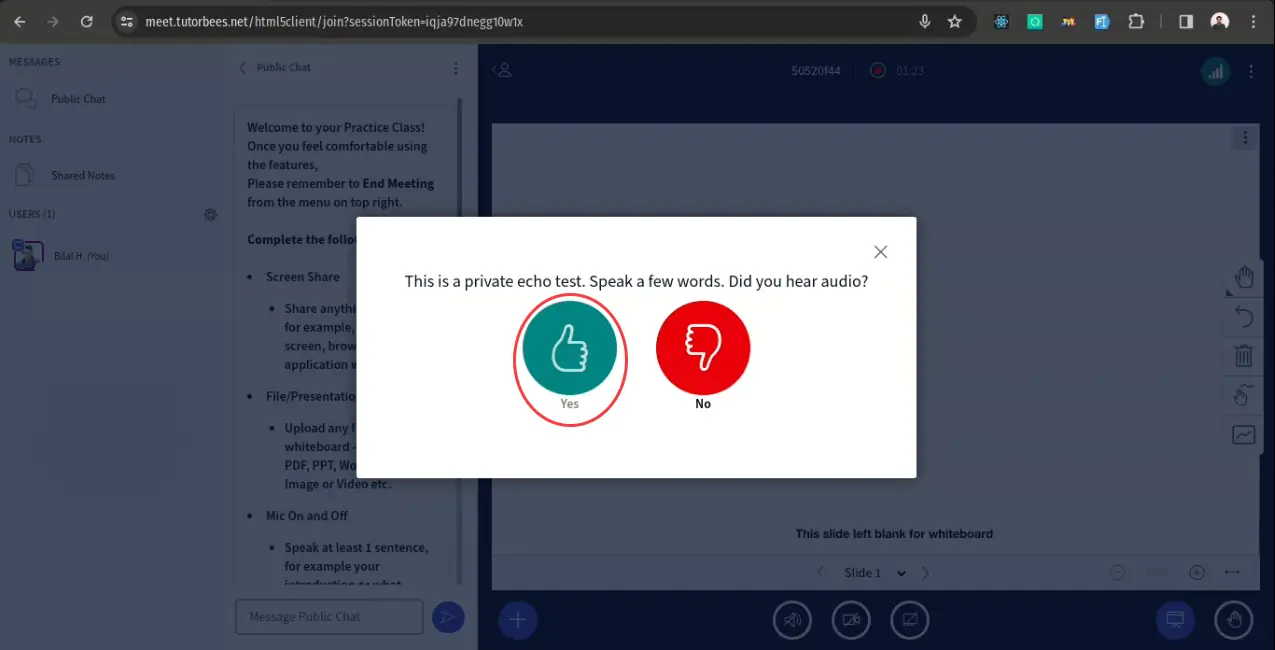
Let the site reload and then afterwards click on the Thumbs Up green button. Congratulations! you have joined the session's audio.
MacBook
If you are unable to join the audio while using the Google Chrome browser on a MacBook, you can follow these steps to allow permissions for your microphone.
Step 1
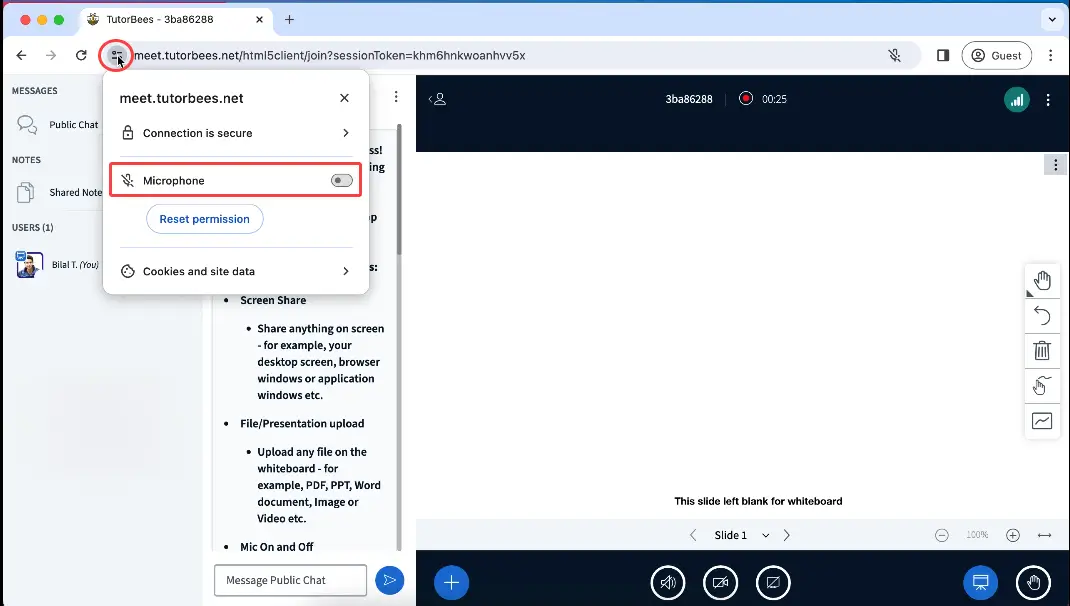
- Click on the Settings button on the left side of your URL. It will open up a menu.
- Turn on the Toggle button at the right of the Microphone indication.
- Close the menu.
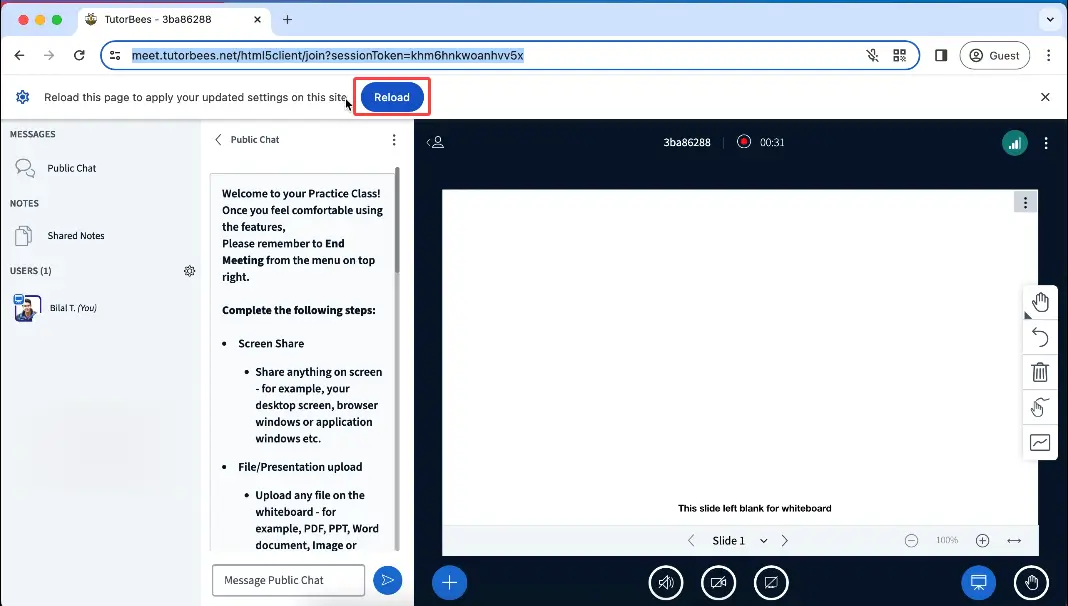
Step 2
Click on the Reload button after you have closed the menu, and wait for the page to reload.
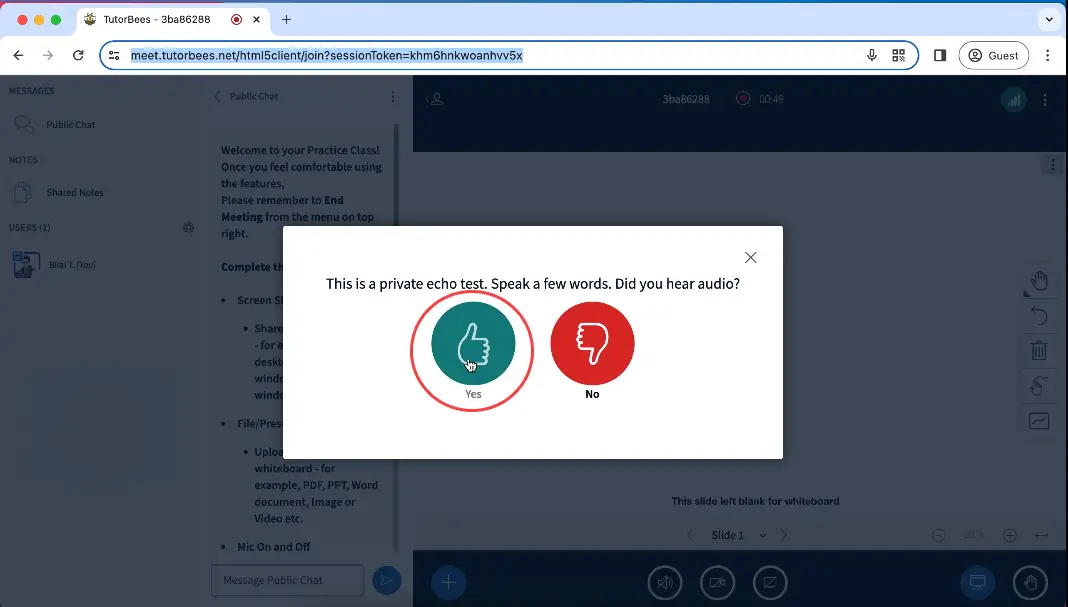
Step 3
Once the page has been reloaded, click on the Thumbs Up green button. Congratulations! you have joined the session's audio.
Mobile (Android)
If you are unable to join the audio while using the Google Chrome browser on an Android phone, please follow these steps to allow permissions to your microphone.
Step 1
Click on the Lock icon beside the URL on the top.

Step 2
Click on Permissions tab.

Step 3
Turn on the Toggle button after the Microphone, and then close the menu.

Step 4
Click on the Speaker button under the whiteboard.

Step 5
Click on the Microphone button when the pop-up appears.

Step 6
Click on the Thumbs Up green button. Congratulations! you have joined the session's audio.

Safari
MacBook
If you are unable to join the audio while using the Safari browser on a MacBook, you can follow these steps to allow permissions for your microphone.
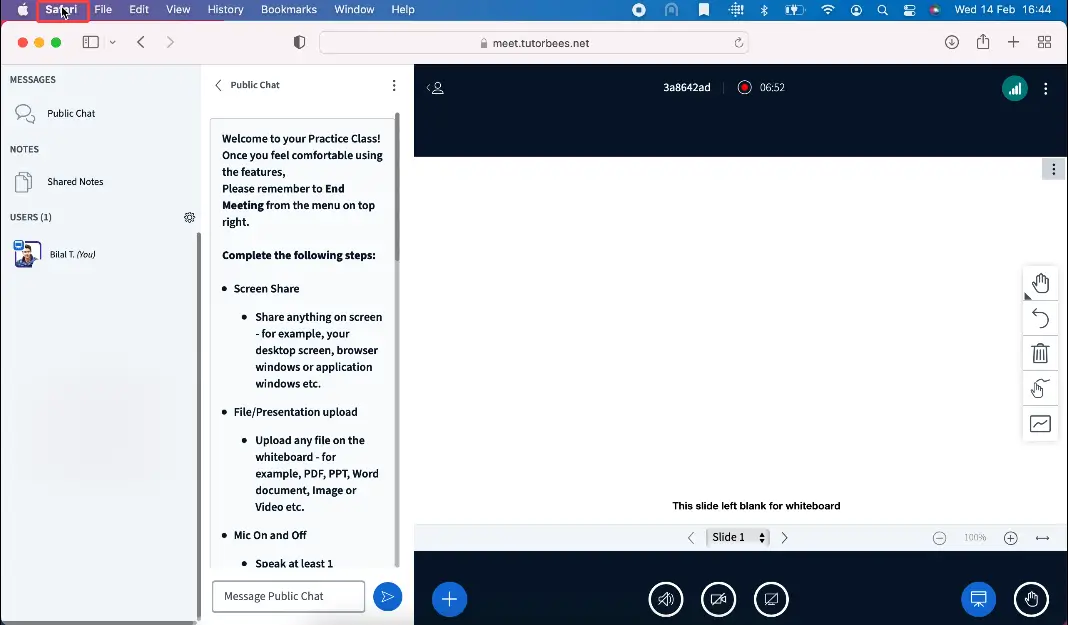
Step 1
Click on the Safari button on the top left side panel beside the Apple logo.
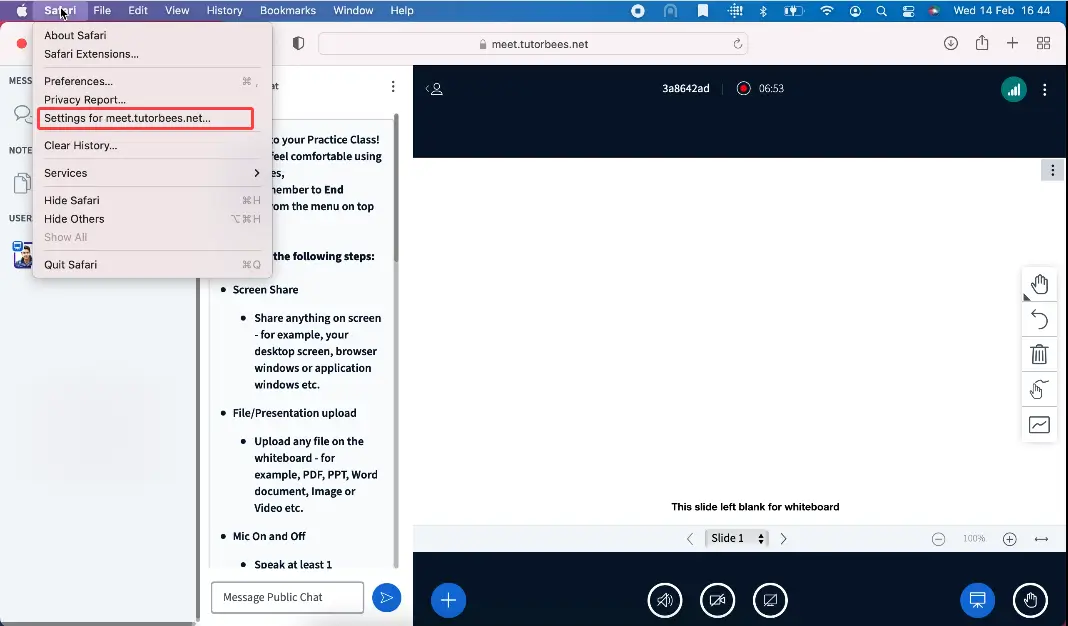
Step 2
Once you have clicked the button it will open up a menu. Click on the Settings for meet.tutorbees.net.
Step 3
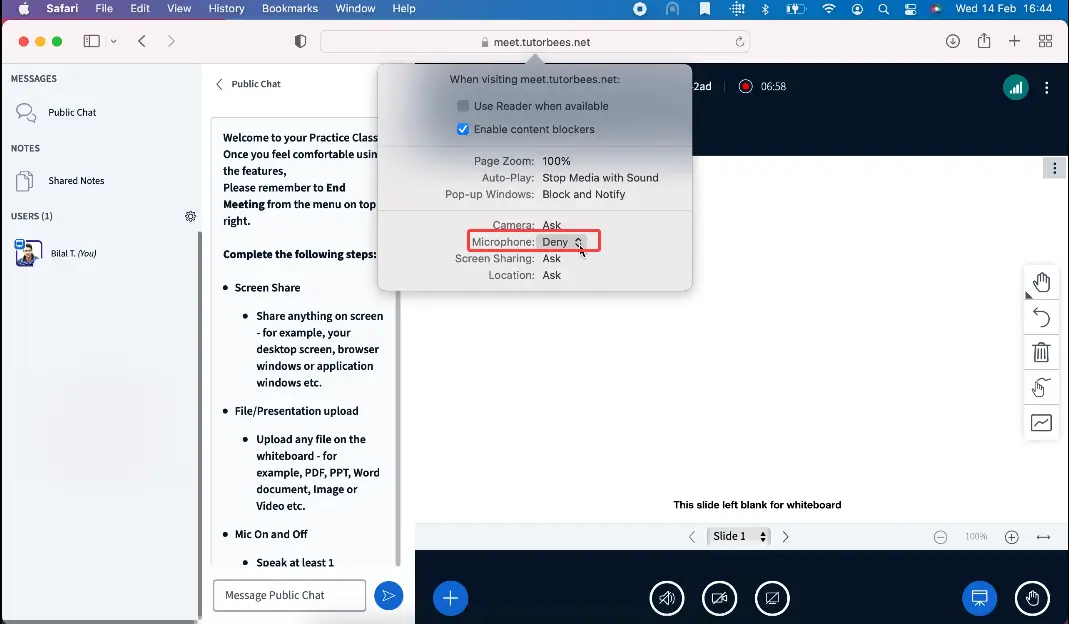
Once the menu under your URL has opened, select the Allow option from the options to right of the Microphone. Then close the menu.
Step 4
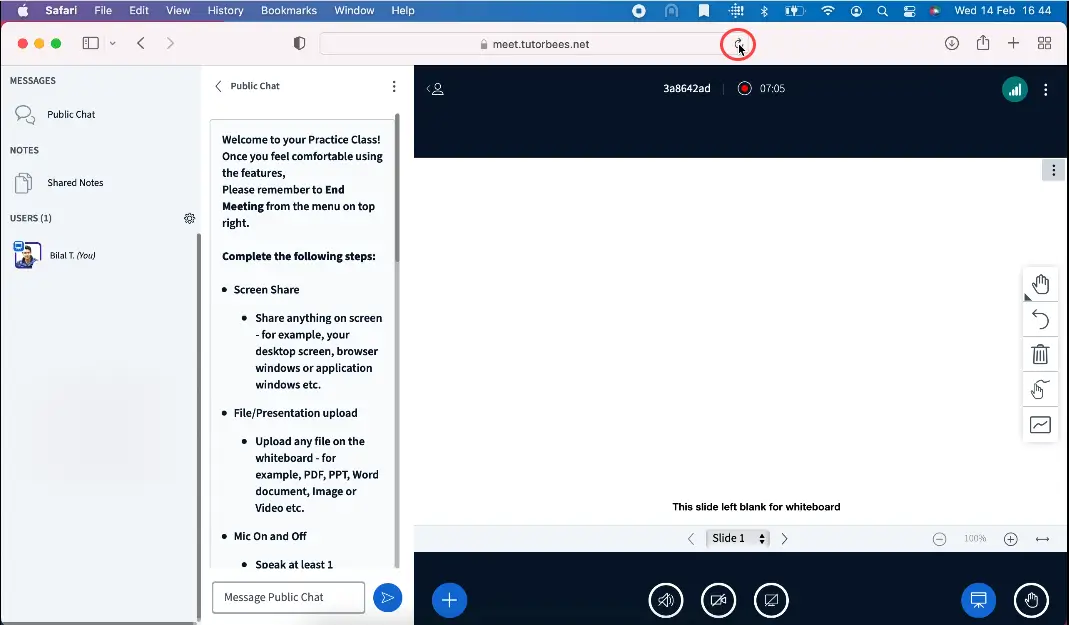
Click on the reload button to the right side of your URL.
Step 5
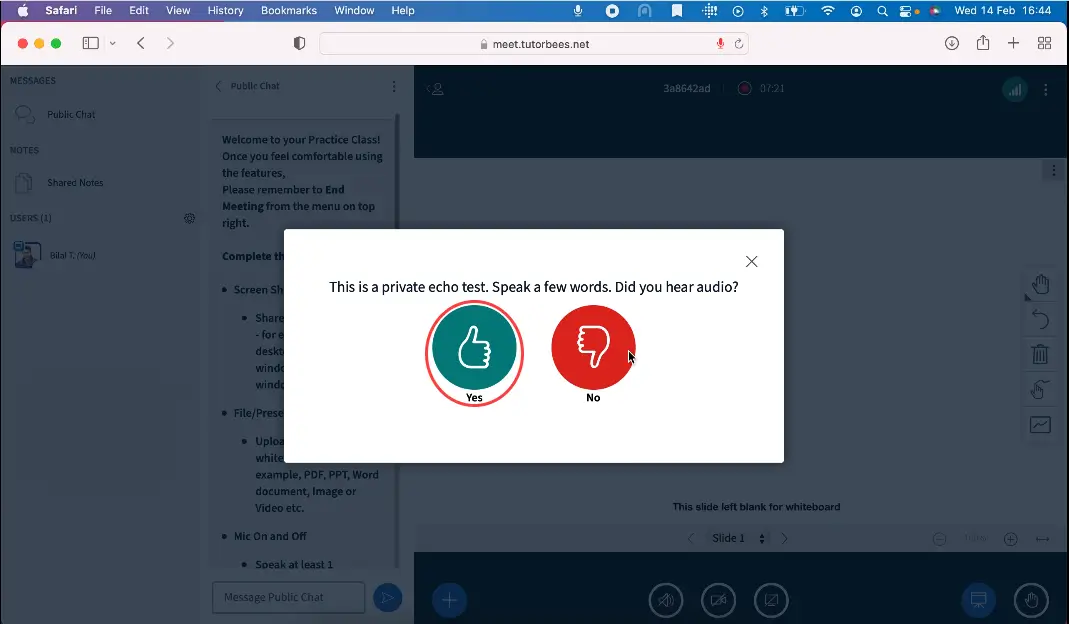
Let the site reload and then afterwards click on the Thumbs Up green button. Congratulations! you have joined the session's audio.
iPhone
If you are unable to join the audio while using Safari browser on iPhone or iPad, you can follow these steps to allow permissions for your microphone.
Step 1
- On your browser click on the Text written on the left side of your URL this will open up a menu.
- When the menu opens click on the Website Settings.

Step 2
Click on the Microphone settings and then click on Allow. Click on Done to close the settings.

Step 3
Reload the browser screen by clicking on the reload button at the right side of the address.

Step 4
Once the screen has been reloaded wait for the pop-up to appear. Click on the Thumbs Up green button. Congratulations! you have successfully joined the audio of the session.

Edge
Desktop/Laptop
If you are unable to join the audio while using the Edge browser on a Desktop computer or Laptop, you can follow these steps to allow permissions for your microphone.
Step 1
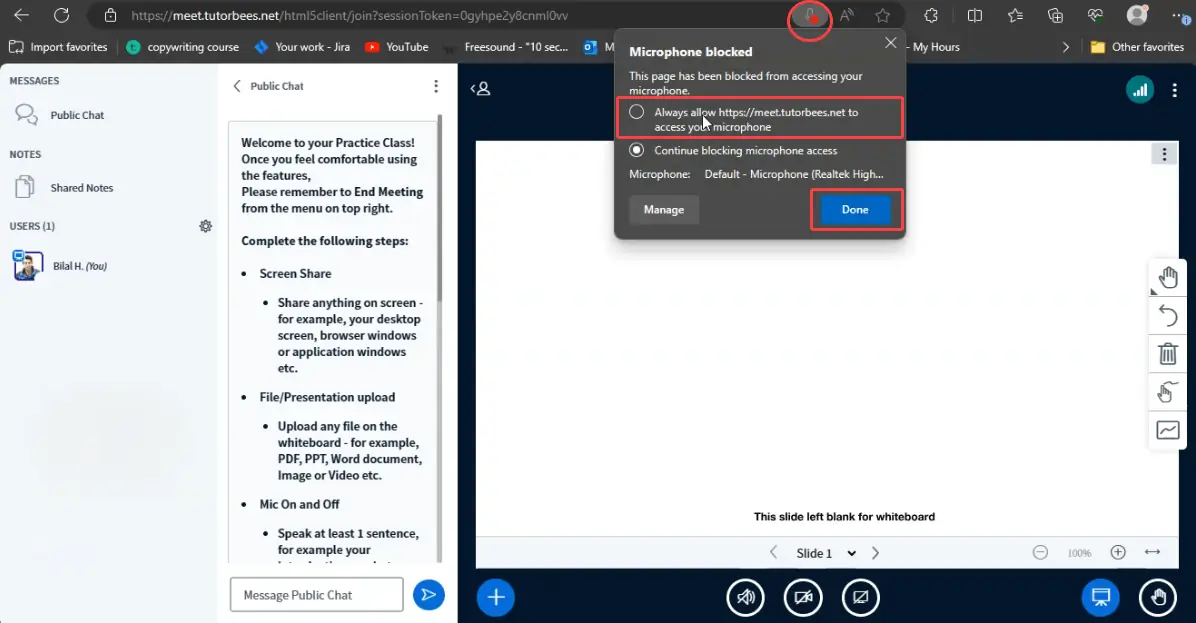
Click on the microphone icon in the address bar to the right of the URL. Then choose the Allow Always option and click on done
Step 2
Click on the Speaker icon under the whiteboard.
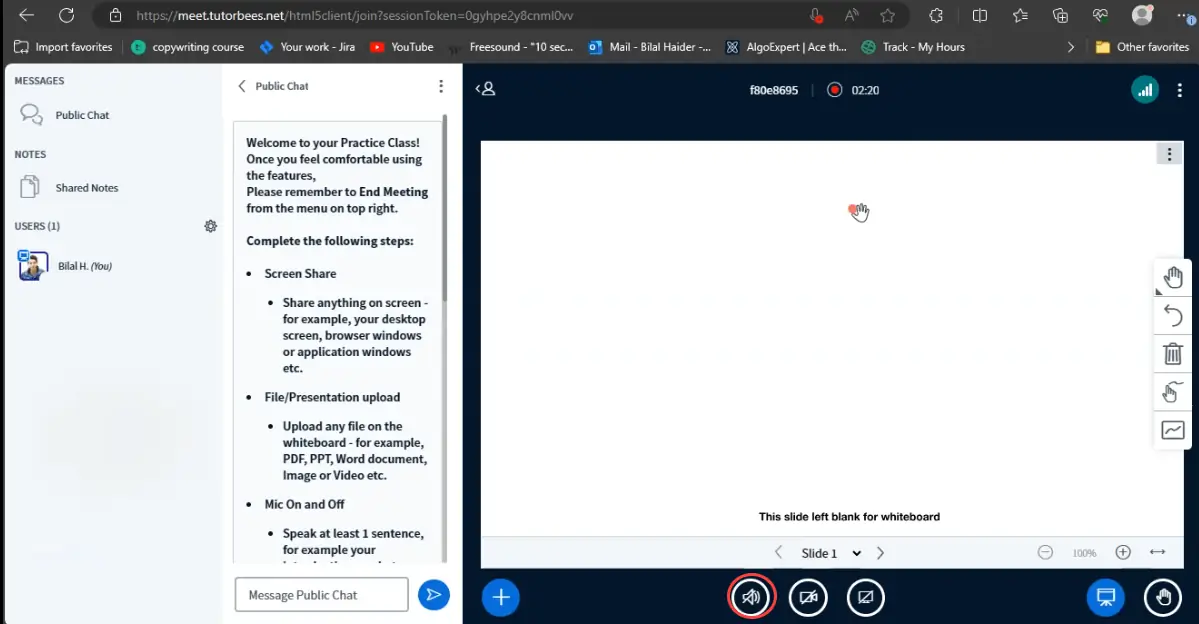
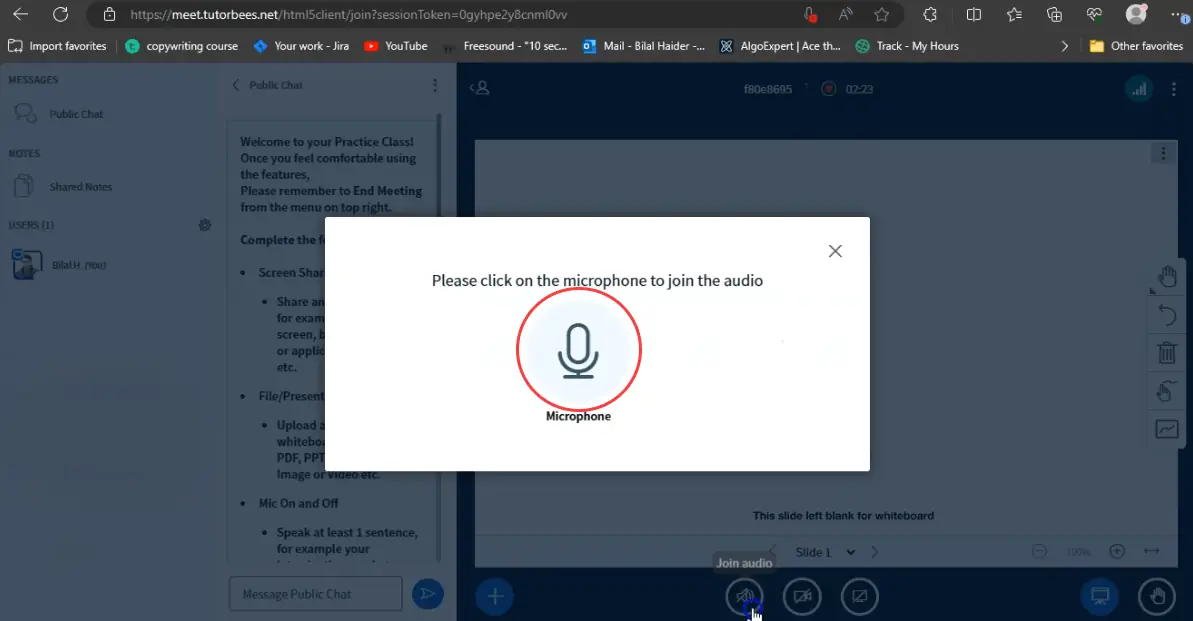
Step 3
Click on the Microphone icon when a pop-up appears.
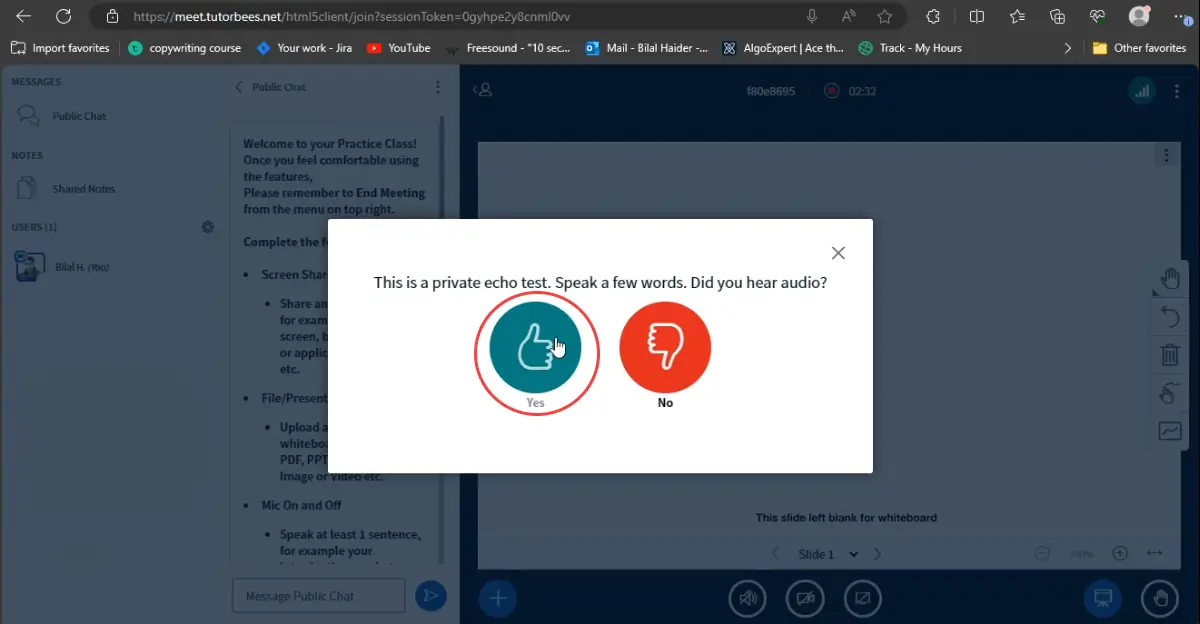
Step 4
Click on the Thumbs Up green button. Congratulations! you have joined the session's audio.
Android Mobile
If you are unable to join the audio while using the Edge browser on an Android phone, you can follow these steps to allow permissions for your microphone.
Step 1
Click on the Lock icon beside the URL on the top.

Step 2
Click on Permissions tab.

Step 3
Turn on the Toggle button after the Microphone, and then close the menu.

Step 4
Click on the Speaker button under the whiteboard.

Step 5
Click on the Microphone button when the pop-up appears.

Step 6
Click on the Thumbs Up green button. Congratulations! you have joined the session's audio.

Firefox
Desktop/Laptop
If you are unable to join the audio while using the Firefox browser on a Desktop computer or Laptop, you can follow these steps to allow permissions for your microphone.
Step 1
Open your settings on the right hand top corner with 3 dashes and click on the settings to open Firefox setting.
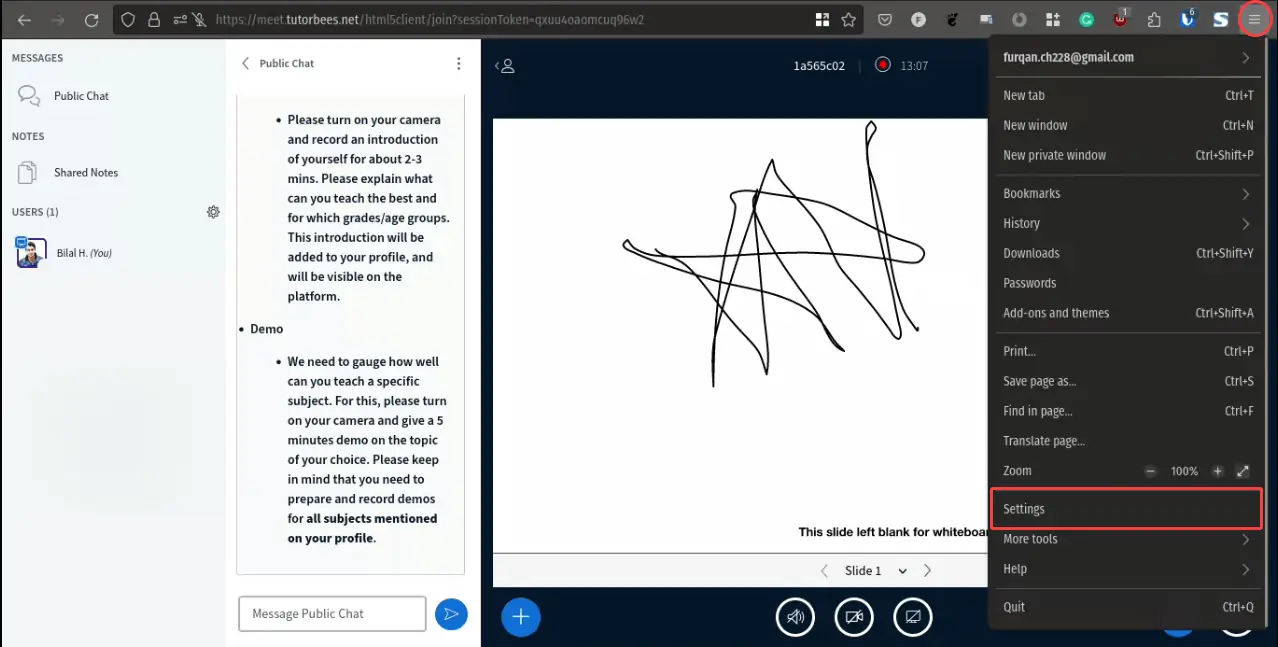
Step 2
In the search bar on top search the Microphone and click on its settings.
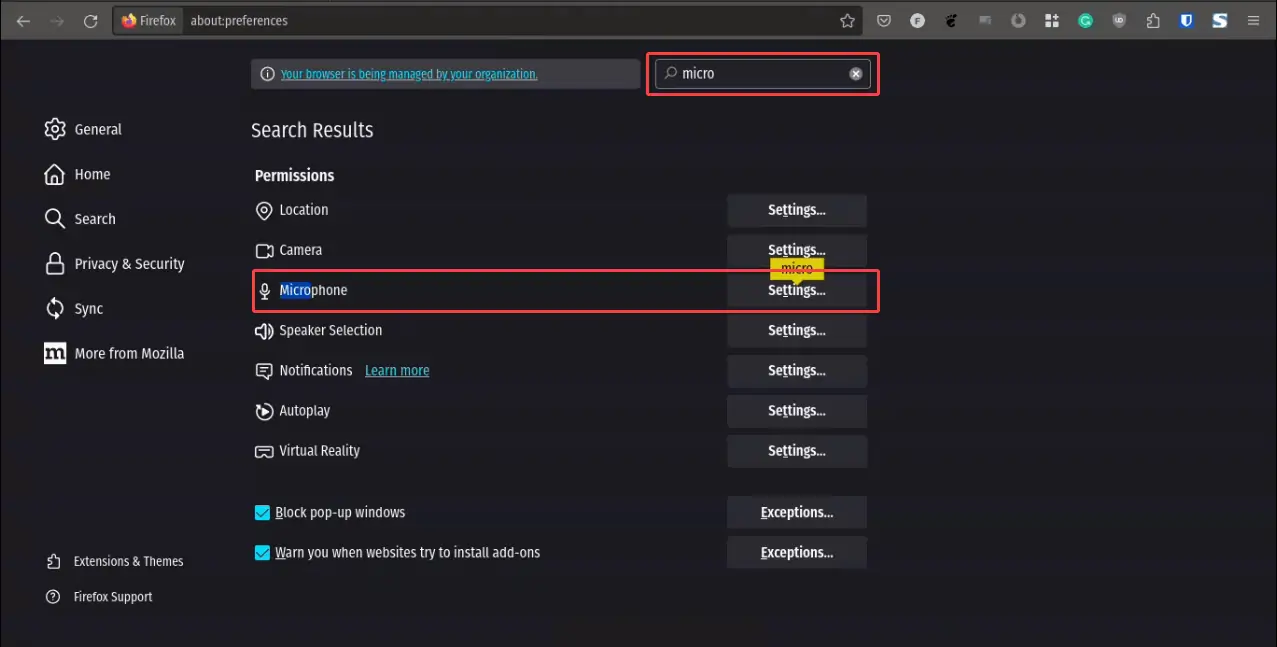
Step 3
Click on the Blocked dropdown and select Allow and then click on the Save Changes button.
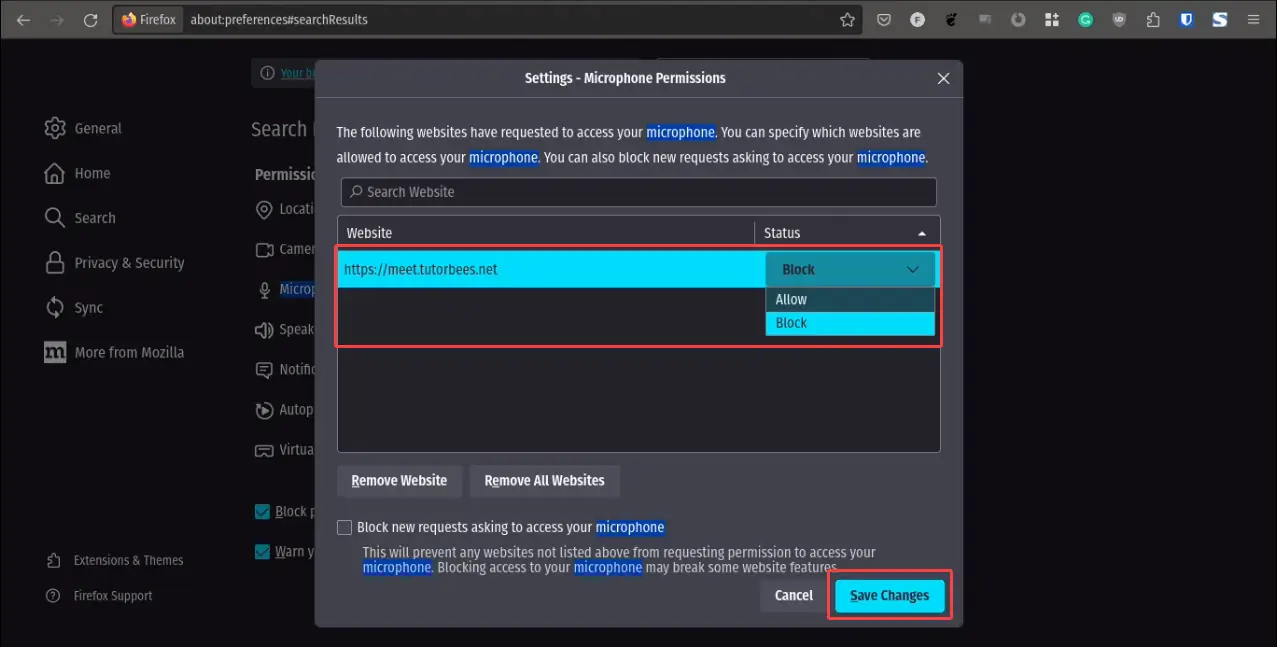
Step 4
Go back to your tab where the meeting is LIVE and click on the Speaker under the whiteboard.
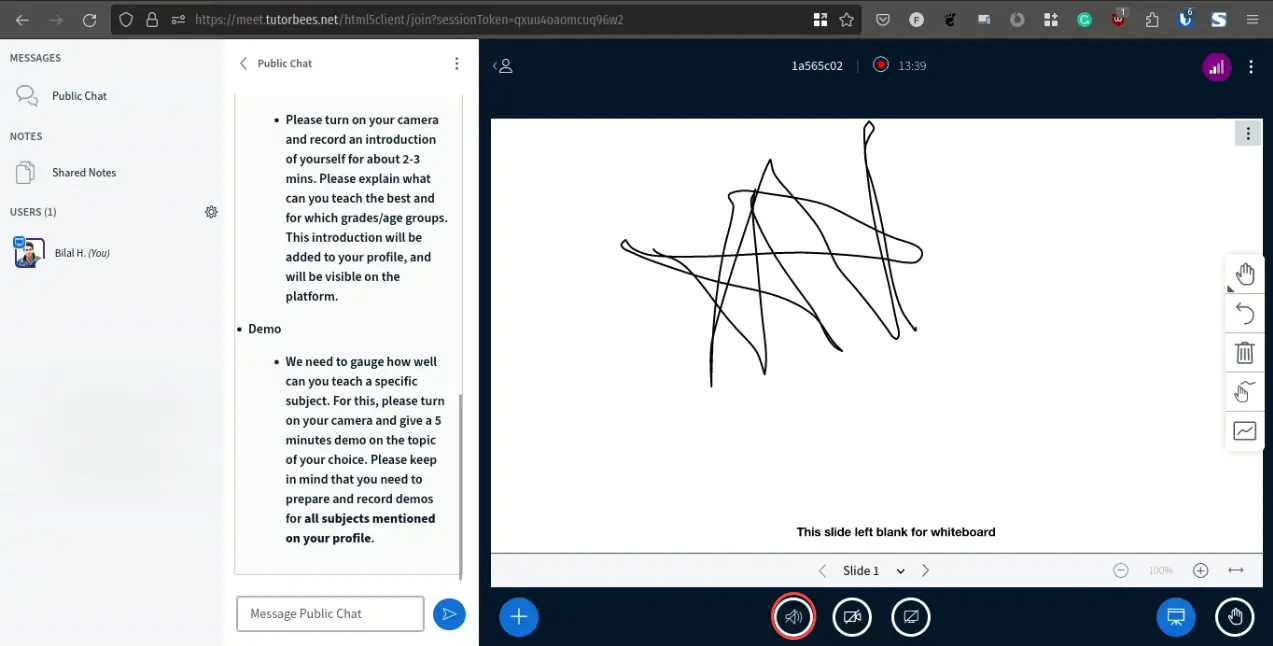
Step 5
Click this the Microphone icon.
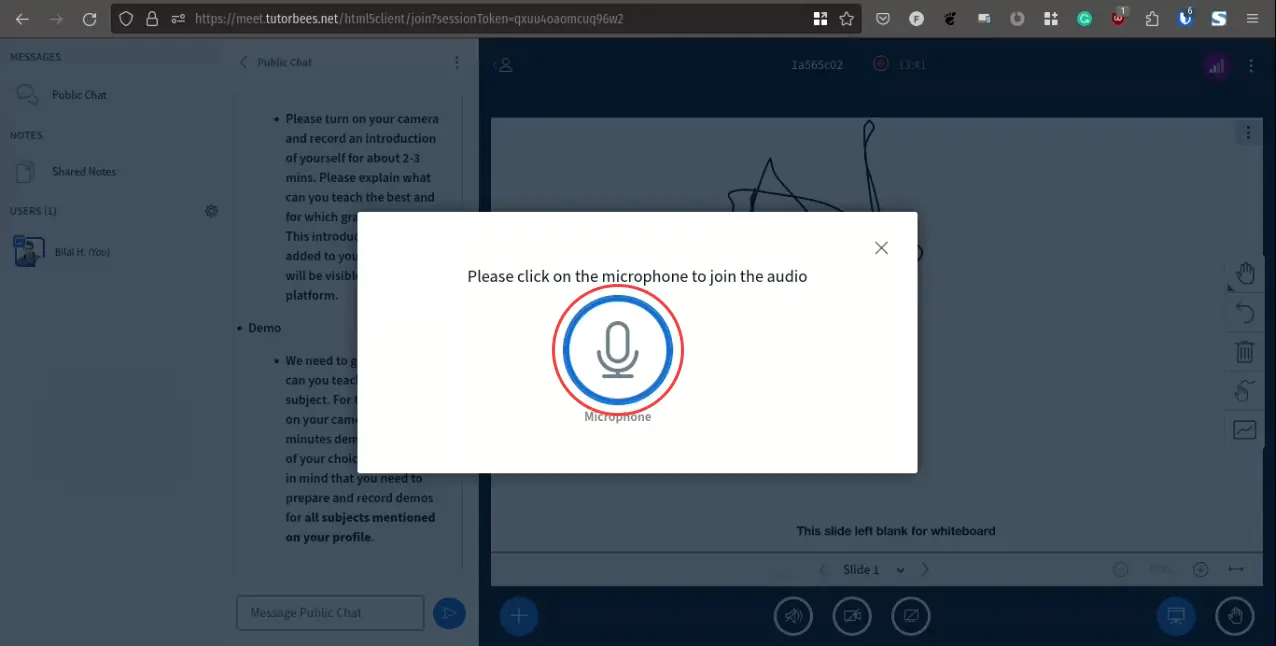
Step 6
Click on the Thumbs Up green button. Congratulations! you have joined the session's audio.
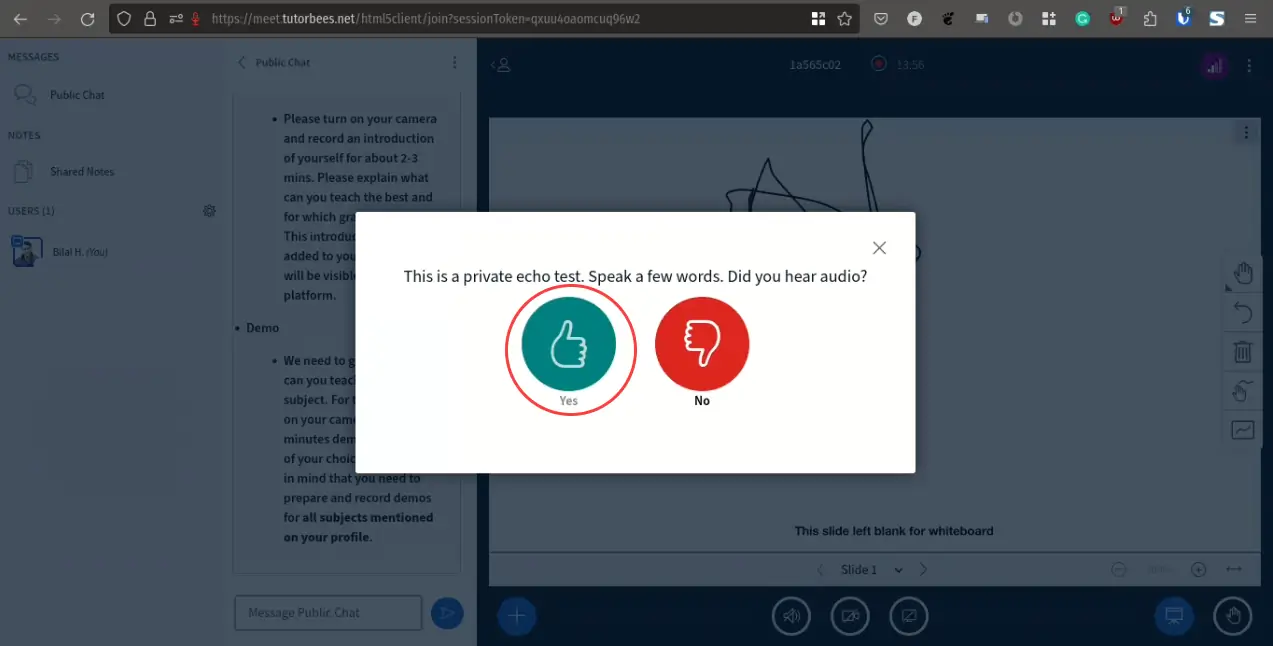
MacBook
If you are unable to join the audio while using the Firefox browser on a MacBook, you can follow these steps to allow permissions for your microphone.
Step 1
Open your settings on the right hand top corner with 3 dashes.
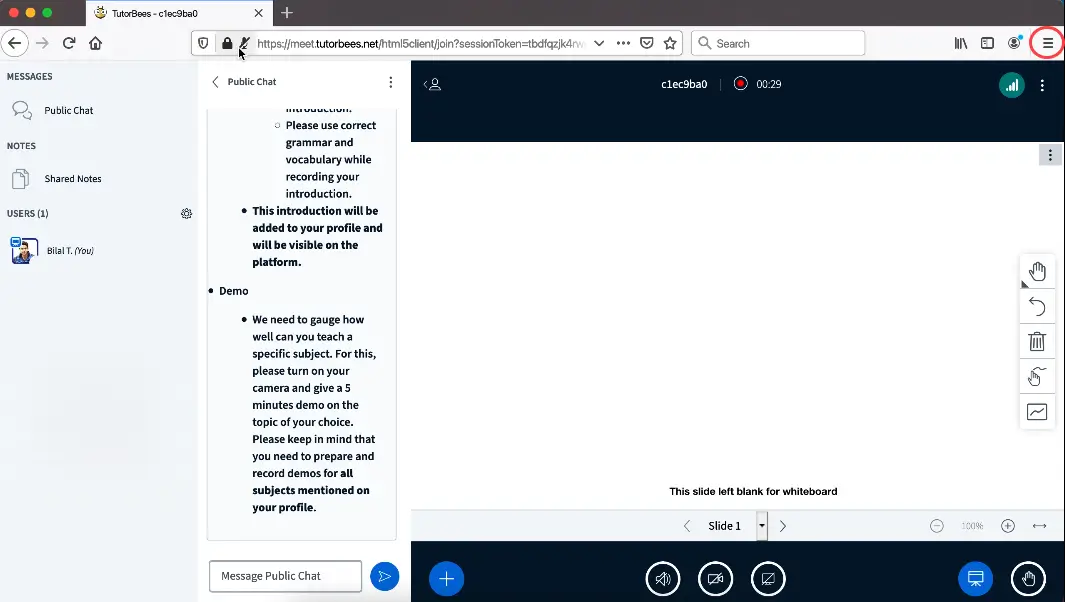
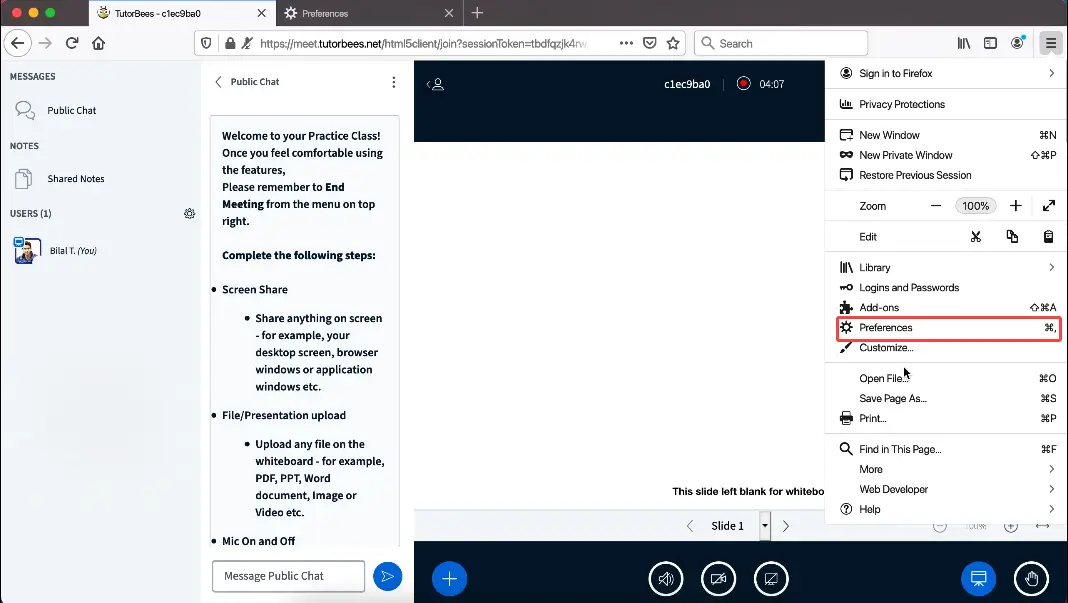
Step 2
In the Menu Click on the Preferences button.
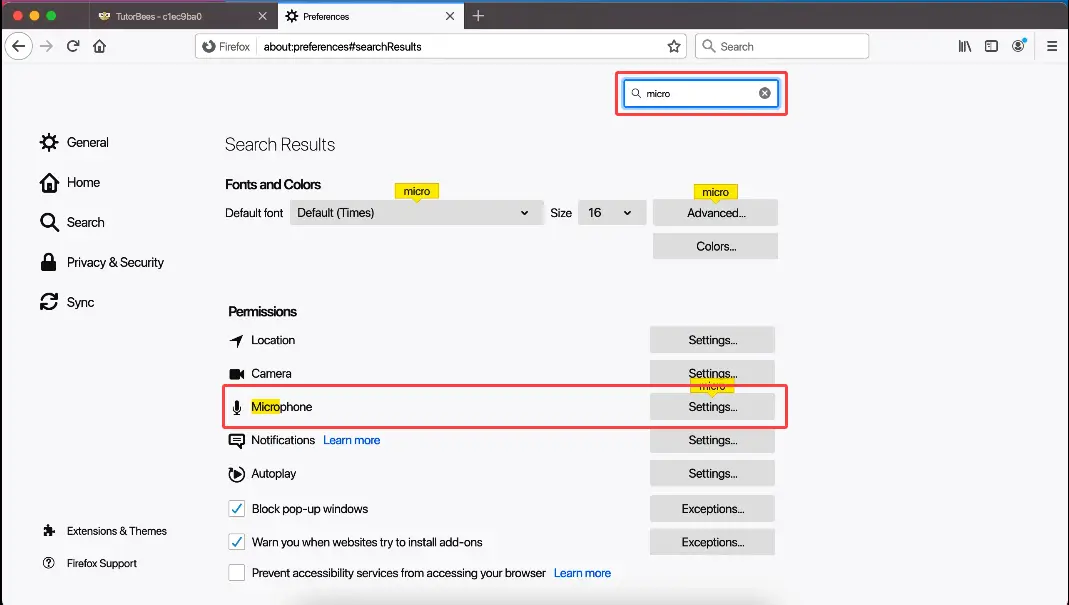
Step 3
In the search bar on top search the Microphone and click on its settings.
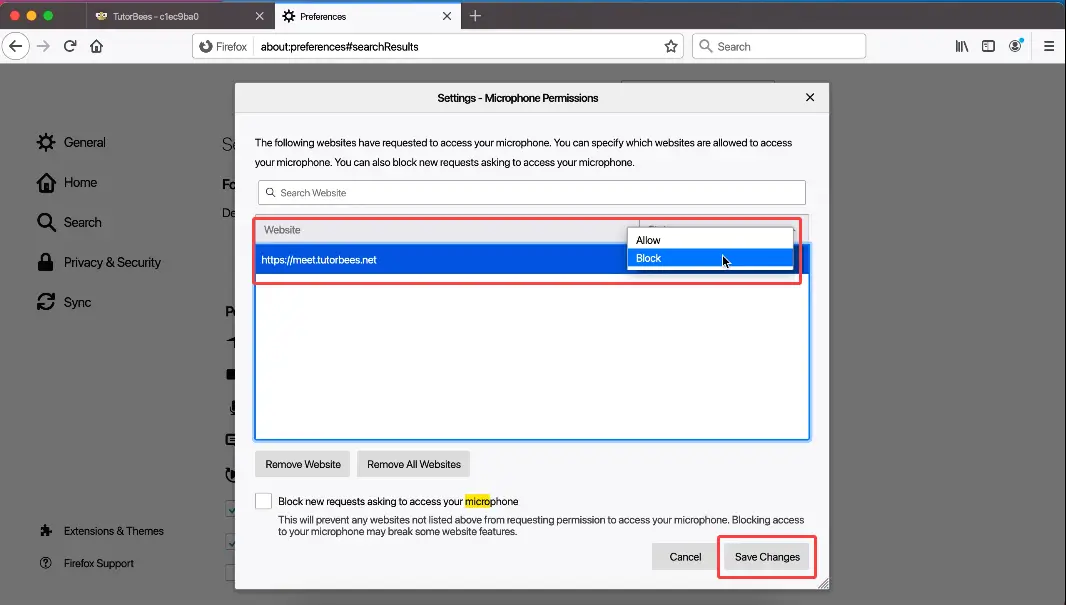
Step 4
Click on the Blocked dropdown and select Allow and then click on the Save Changes button.
Step 5
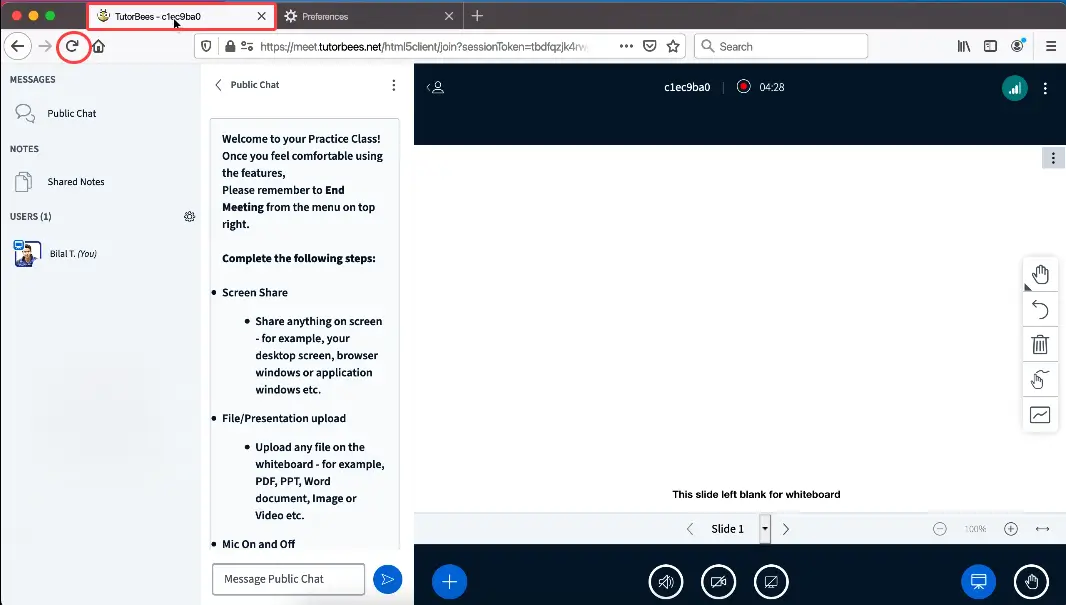
Go back to your tab where the meeting is LIVE and click on the Reload button on the left side of the URL.
Step 6
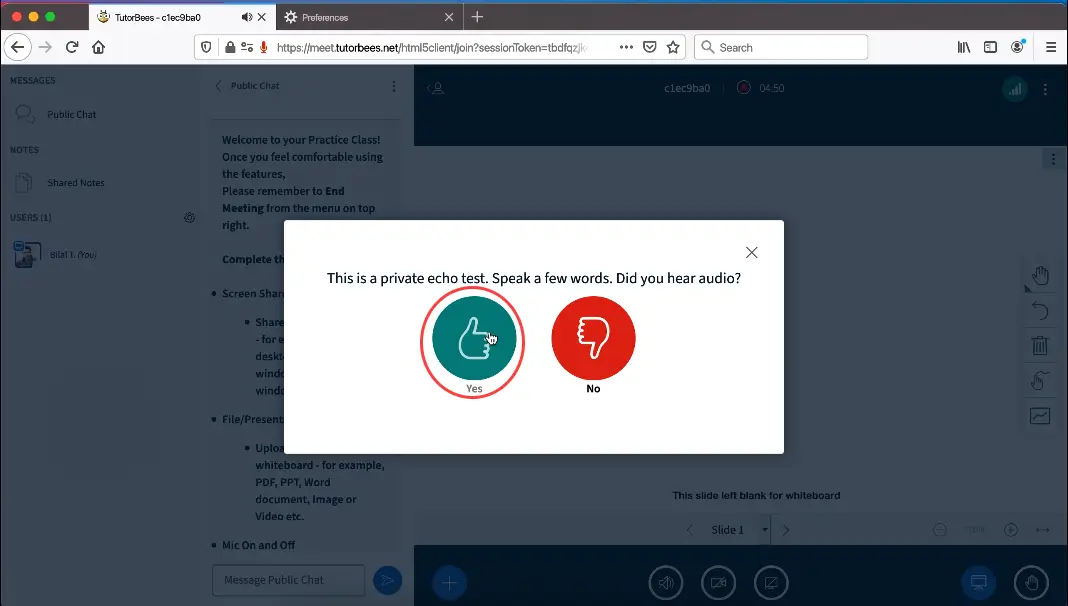
Click on the Thumbs Up green button. Congratulations! you have joined the session's audio.
Android Mobile
If you are unable to join the audio while using the Firefox browser on an Android phone, you can follow these steps to allow permissions for your microphone.
Step 1
Click on the Lock button beside the URL at the bottom of your mobile browser to open the settings.

Step 2
Click on the Blocked button to change it to Allow. Close the menu and then let the page to reload automatically.

Step 3
Click on the Thumbs Up green button. Congratulations! you have joined the session's audio.
