How to join a class?
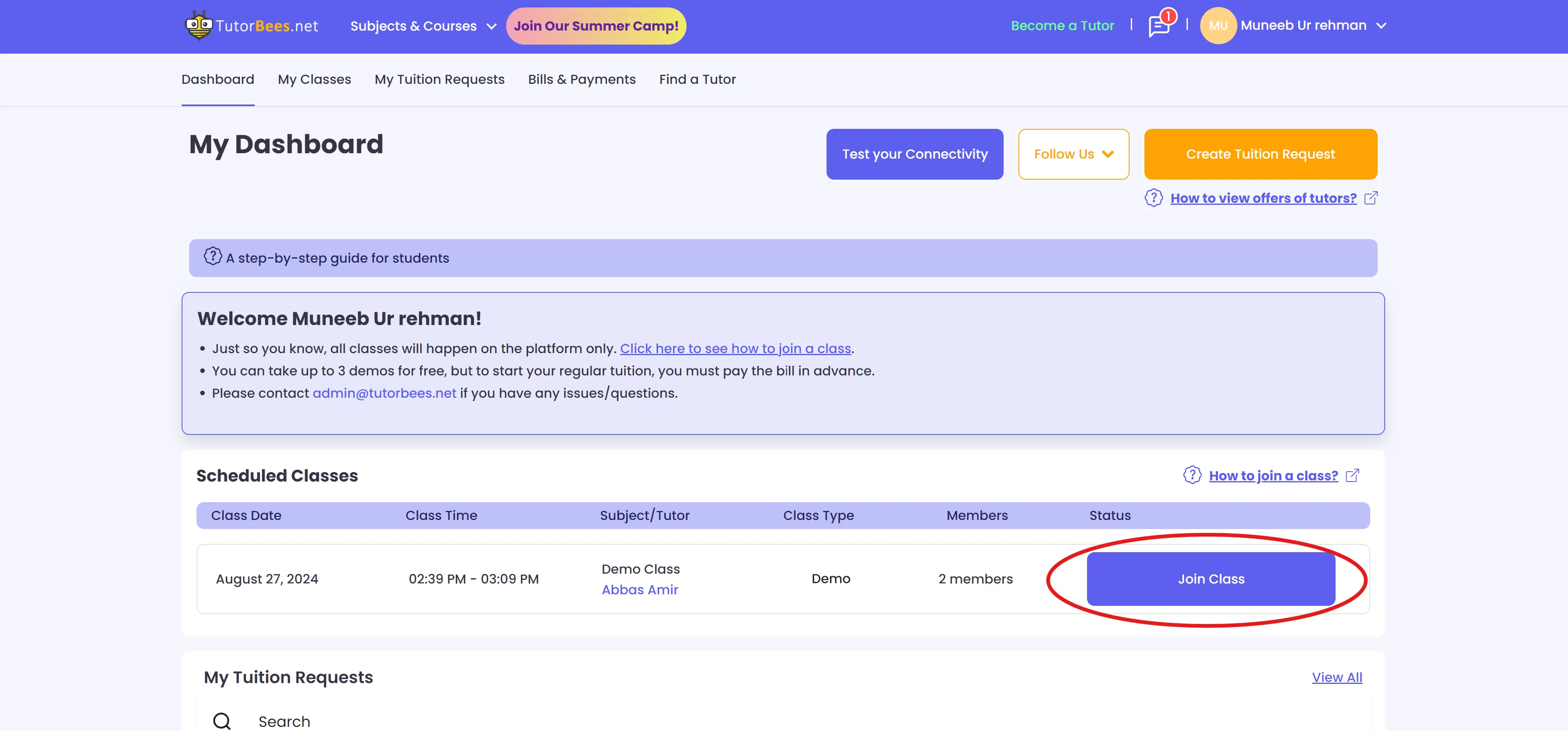
When a tutor creates a class for you on your agreed-upon date and time, the class will be visible on your dashboard with "Scheduled" status. 15 minutes before the scheduled time, the "Join Class" button will be shown. Click on that button to join the class.
If you are facing any issue in connecting your microphone, please go through our guide on resolving audio issues.
How to set up audio?
When you join a class you go in a connectivity test, where your audio (Microphone and Speaker) is tested. Here are the steps to connect your audio:
Step 1
Click on the Join Class button to join your class.

Step 2
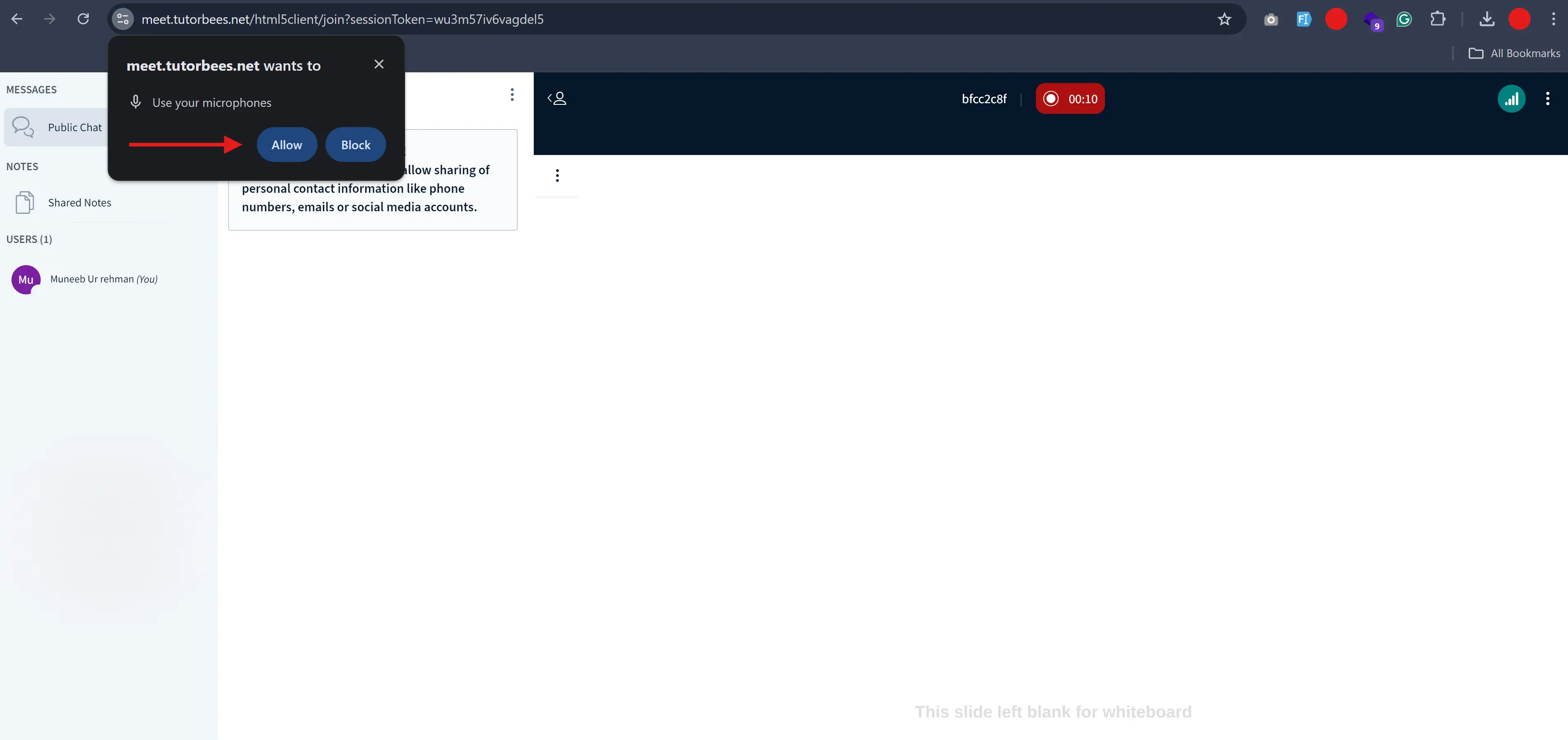
The browser will ask permission to allow microphone for the class, click on Allow button.
Step 3
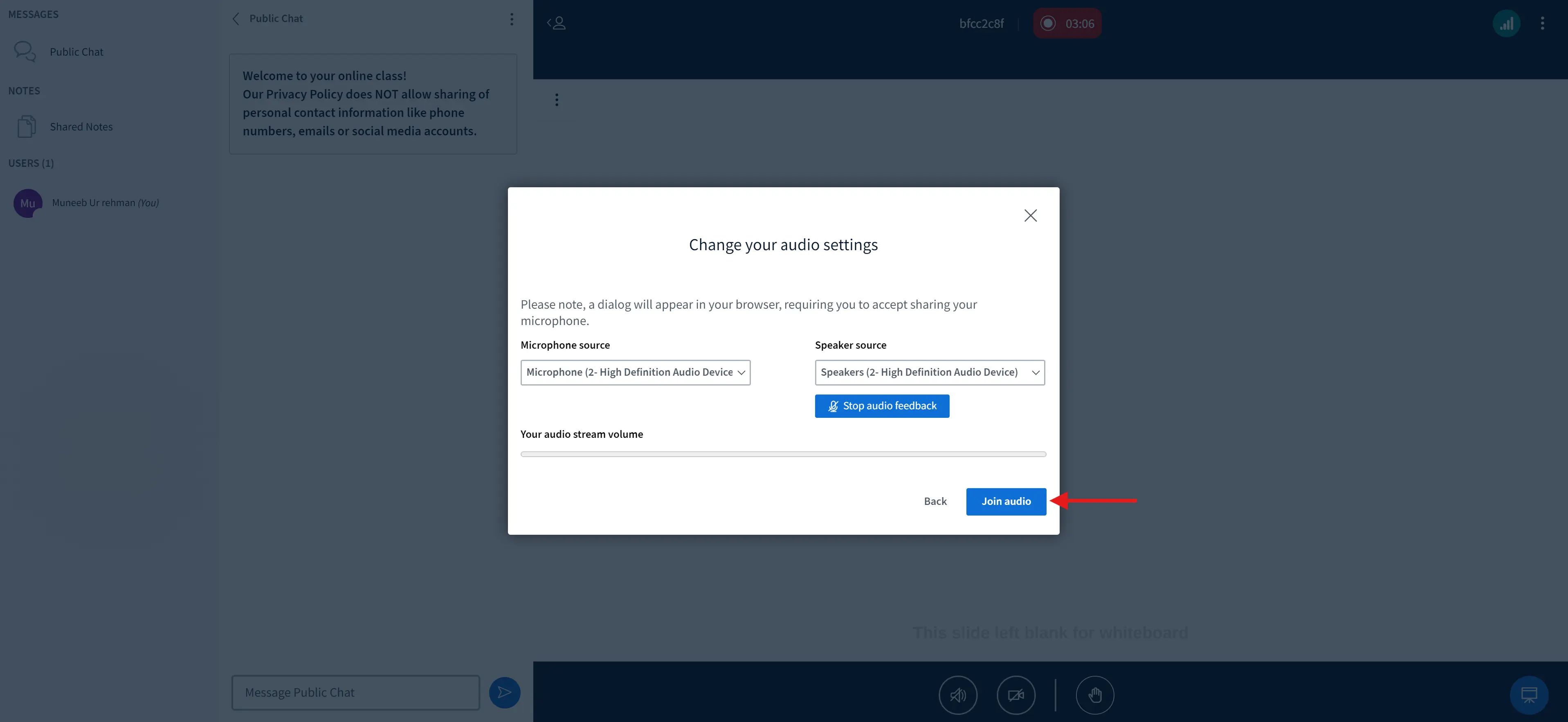
After the connectivity test, this will pop up on your screen, click on "Join audio" button and you will join the class successfully.
How to set up a background?
If you are going to turn your camera on, please use a virtual background to give it a professional look. Please watch this video to see how to turn your camera and set up a virtual background.